Nine video editors whose AI actually speeds up editing your own footage, from text-based cuts to generative fixes, and who each one is for.
The best AI video editors in 2026 are Descript for podcasts and talking-head video, Adobe Premiere and DaVinci Resolve for professional editing, CapCut and OpusClip for social clips, and Runway for generative changes to shots you already filmed. VEED and Kapwing suit teams that work in the browser, and Filmora suits beginners who want a desktop app.
All nine edit your own footage. For each one we name the AI feature that saves the most time, the reader it fits, what it costs and the limits you should know before you pay.
Tools, features and prices checked on September 28, 2026.
What changed for AI video editors in 2026
This year editors got agents. Descript’s Underlord and Kapwing’s Kai take an instruction in plain language and carry out several edits in a row. Generative tools also moved into the professional timelines, where Premiere now creates effect shots from a prompt and DaVinci Resolve searches footage by what it shows. Runway went a different way with Aleph 2.0, a model that edits footage you already have instead of generating new clips.
The other shift is in pricing. More AI work is paid for in credits on top of the plan. Descript’s plans come with a monthly allowance of AI credits, Kapwing Pro includes a credit budget, and Runway bills Aleph by the edited second. Even Filmora’s one-time license pays for its AI tools in credits. When you compare prices, look at the credit allowance as closely as at the monthly fee.
How we picked these tools
Every tool here exists to edit footage you recorded yourself, so text-to-video generators and avatar studios are out, even when their marketing calls them video editors. We checked every feature, limit and price on the vendor’s own site or in its 2026 release notes, and a claim without such a source is not in this article. When you compare the tools, these are the qualities that matter most.
- Time saved: how much routine work, such as filler words, silences, captions and reframing, the AI takes off your hands.
- Fit for your format: talking heads, social clips, a professional timeline or fixes to single shots each call for a different tool.
- Control over the result: you should be able to review and correct what the AI did, in a timeline or a transcript.
- Export quality: resolution, aspect ratios and watermarks on the plan you would actually use.
- Cost of the AI: a subscription, a one-time license or credits, and what the AI features cost on top.
- Where it runs: phone, browser or desktop, and whether projects move between them.
1. Descript
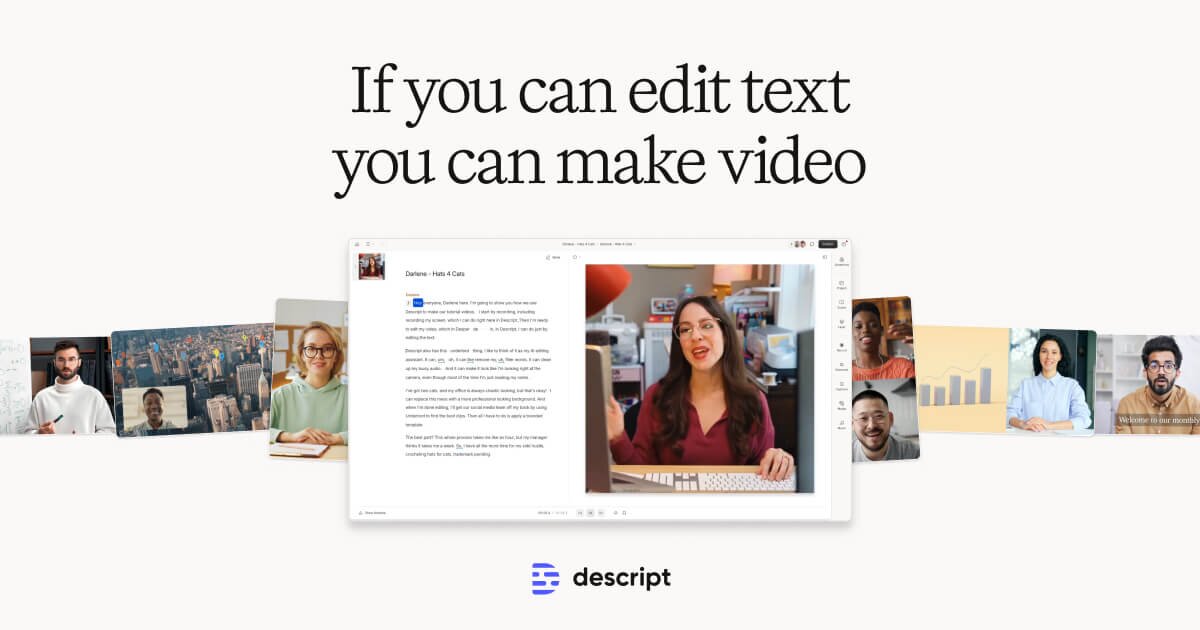
Delete a sentence from the transcript and Descript deletes the matching footage, which suits podcasters, YouTubers and teachers who mostly record people talking. The co-editor Underlord takes this further. Describe the edit, and it can turn a webinar recording into a trailer or hide jump cuts by adding zooms.
Key AI features
- Text-based editing: cut, reorder and trim by editing the transcript.
- Underlord: an agentic co-editor that takes plain-language instructions.
- Studio Sound: cleans up room noise in the recording.
- Eye Contact: moves the speaker’s gaze toward the camera.
Pros
- You can edit a recorded talk without ever learning a timeline.
- A single instruction clears out retakes and filler words.
- Audio and eye contact get fixed in the same project, with no round trip to other apps.
Cons
- The free plan has no Underlord, and Hobbyist gets limited access; full access starts with Creator.
Pricing: free plan; Hobbyist from $16 and Creator from $24 per person per month, billed annually (Descript pricing).
2. Adobe Premiere
Adobe dropped the “Pro” from the name with version 26.0 in January 2026, which also brought Object Mask, and Adobe Premiere has picked up more generative tools since. Version 26.5, released on September 10, 2026, added the Generative Media Tool and Paper Edit.
Key AI features
- Object Mask: one click selects a person or object, and the mask follows it through the shot.
- Generative Extend: adds frames to the start or end of a clip.
- Generative Media Tool: transitions, ambient sound or effect shots, generated from a prompt as editable clips.
- Paper Edit: you pick sentences in the transcript and Premiere assembles the rough cut.
Pros
- Your team gets the new AI tools inside the timeline it already knows.
- A clip that runs slightly short can be extended instead of reshot, now up to 4K.
- Searching footage by what it shows gets you to the right shot sooner.
- You spend less time in stock libraries looking for a transition or an ambient sound.
Cons
- Available only as a subscription, with no perpetual license.
Pricing: from $22.99 per month on an annual plan, billed monthly (Adobe).
3. DaVinci Resolve
For editors and colorists, the headline of DaVinci Resolve 21 is IntelliSearch. Blackmagic Design shipped the final release of version 21 on June 2, 2026, with a set of new AI repair tools alongside it.
Key AI features
- IntelliSearch: finds moments in your footage by content, people or dialogue.
- Magic Mask: isolates people or objects and tracks them for grading and effects.
- CineFocus, UltraSharpen and Motion Deblur: shift the focal point, sharpen and repair motion blur after the shoot.
- Speech Generator: voice lines from typed text.
Pros
- You pay once and keep the software, with no monthly fee.
- A specific moment in hours of footage turns up without scrubbing through it.
- Faces can be retouched without leaving the edit.
Cons
- The new AI tools of version 21 are only in Studio (details).
Pricing: free version; DaVinci Resolve Studio $295 one-time (Blackmagic Design).
4. CapCut
Short-form creators who post to TikTok or Reels several times a week are CapCut‘s core audience, and the free version lets them try the whole workflow before paying.
Key AI features
- Long video to shorts: scene detection picks the highlights and cuts them into vertical clips.
- Auto captions: subtitles are generated with each clip.
- Background removal: cuts out people without a green screen.
- Beat sync: times cuts to the music.
Pros
- One long recording turns into several ready-to-post vertical clips.
- A clip started on the phone can be finished on the desktop.
Cons
- Watermark-free export, 4K or 60fps, Pro effects and AI generation require CapCut Pro.
5. Runway

Runway‘s Aleph 2.0 swaps a product for a new colorway, removes a stray person from the frame or moves a scene to evening light, all from a text prompt. It came out on May 21, 2026 together with the Edit Studio app and is aimed at ad and product teams.
Key AI features
- Aleph 2.0: edits one frame or follows a prompt, then carries the change through the clip.
- Restyling: gives a whole video a different look.
Pros
- A flawed shot gets fixed without a reshoot.
- One change reaches every relevant shot, so you skip shot-by-shot work.
- A seasonal variant of a campaign can come from the footage you already have.
Cons
- Clips up to 30 seconds at 1080p.
- Each edited second costs 28 credits.
Pricing: Standard from $12 per month billed annually, with 625 credits (Runway pricing).
6. VEED
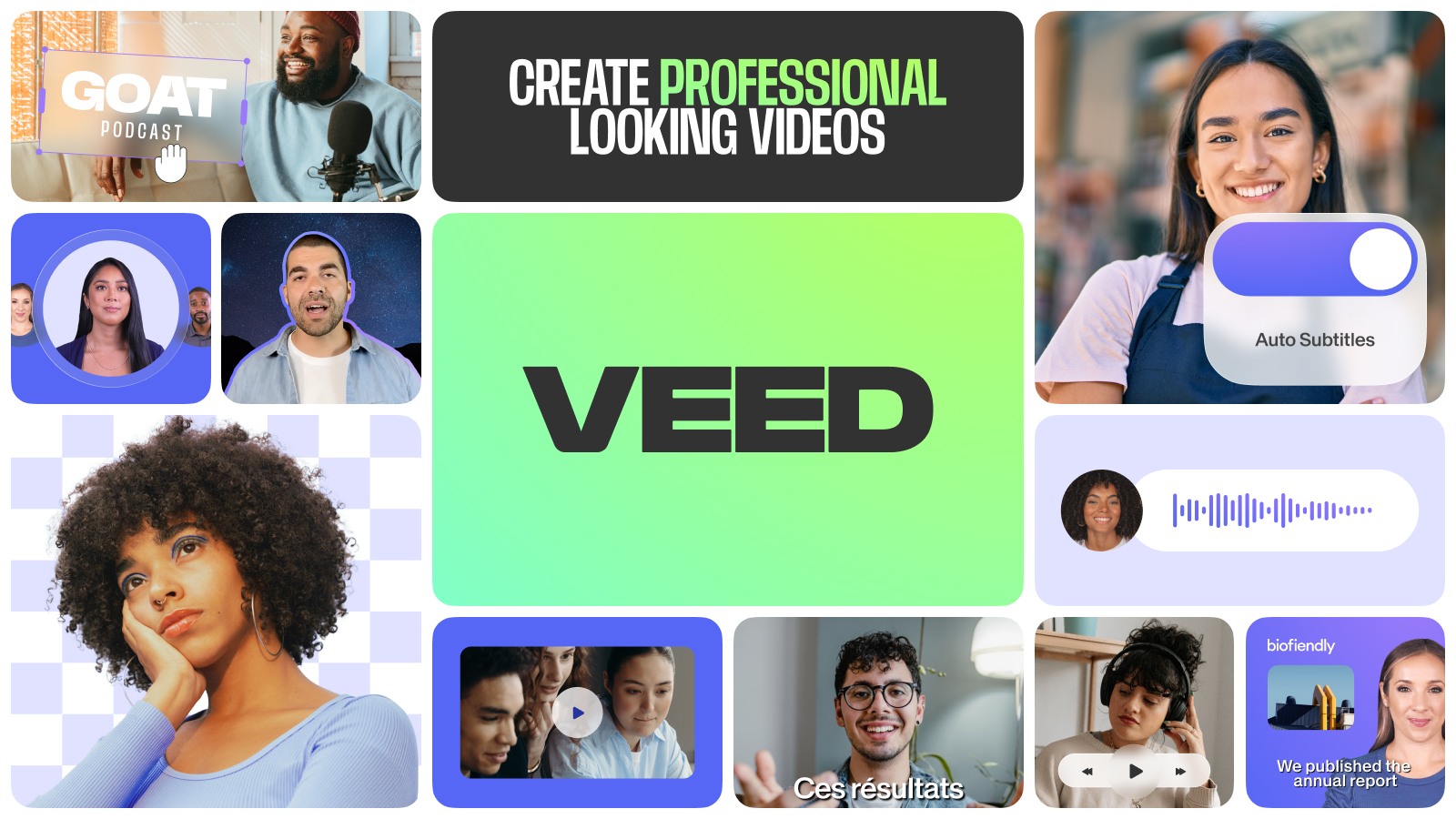
Where Descript centers on one person and a transcript, VEED fits a marketing team that ships videos every week. It runs in the browser, with an iOS app for work on the go.
Key AI features
- Auto subtitles and translation: captions, translations and transcripts come out of one step.
- Eye Contact correction: redirects the speaker’s gaze toward the lens.
- AI dubbing: voices a video in another language.
- Edit with Script: trims the video through its transcript.
Pros
- Translated subtitles and dubbing let the same video reach viewers in other languages.
- The whole team can work on videos without installing anything.
Cons
- Exports from a free account carry a VEED watermark, and removing it later means exporting again after you upgrade.
7. Kapwing
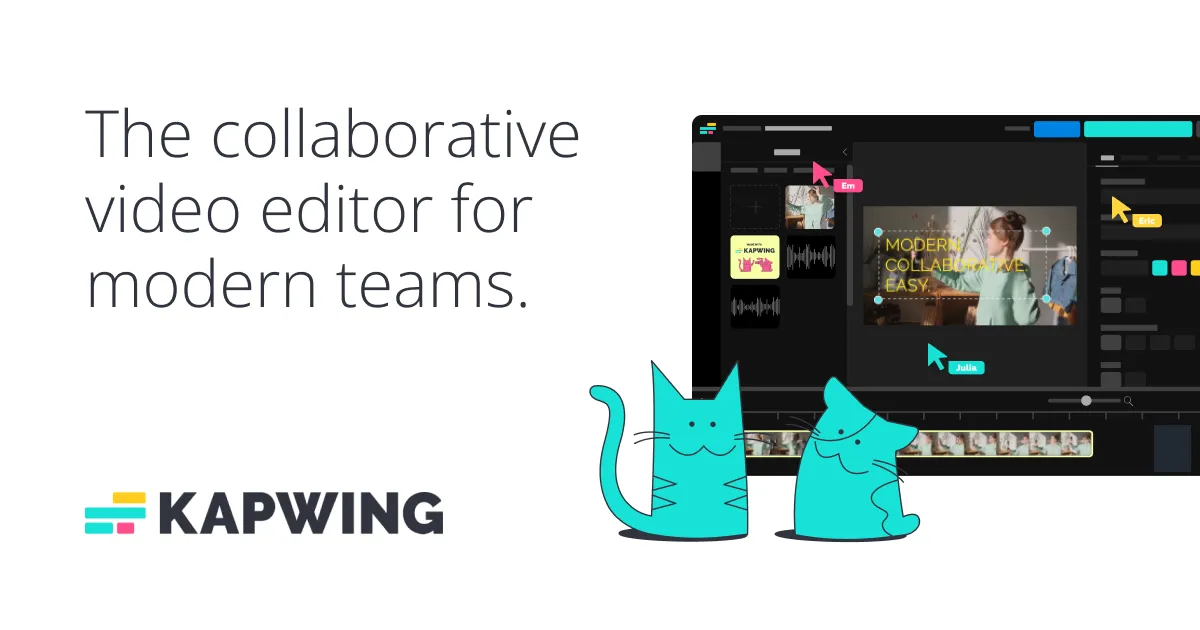
Since May 2026, you can hand more than 10 videos or images to Kai in a single chat. Kai is the editing agent that Kapwing puts in front of its browser editor: you upload footage, describe the video, approve the plan and refine the result with follow-up prompts.
Key AI features
- Kai: builds and revises edits from uploaded media and plain-language instructions.
- Smart Cut: strips silences from a recording automatically.
- Trim with Transcript: edits the video through its text.
Pros
- You get a first cut from a chat, without editing skills.
- Every tool, Kai included, can be tried before you pay.
- Dead air leaves your recordings without manual trimming.
Cons
- Free exports are limited to 720p with a watermark.
Pricing: free plan; Pro from $16 per month billed annually, with 1,000 credits (Kapwing pricing).
8. Filmora
Wondershare Filmora is a desktop editor for beginners, with its AI tools built into one timeline. Version 16, released in September 2026, added AI Media Analysis along with caption correction and a night-view enhancer for dark footage.
Key AI features
- AI Media Analysis: tags and scores clips by content.
- AI Extend: continues video and audio past the end of a clip.
- AI Object Remover with Magic Box: removes people, watermarks or subtitles from a shot.
- AI Mate: a chat assistant that executes edits and explains features.
Pros
- You spend less time hunting for usable shots in your footage.
- The perpetual license lets you own the software outright.
Cons
- Most AI tools are paid with AI credits; the perpetual license includes 1,000 credits once, with no renewal.
Pricing: free version with watermark; Basic from $49.99 per year, Perpetual $79.99 one-time (Filmora pricing).
9. OpusClip
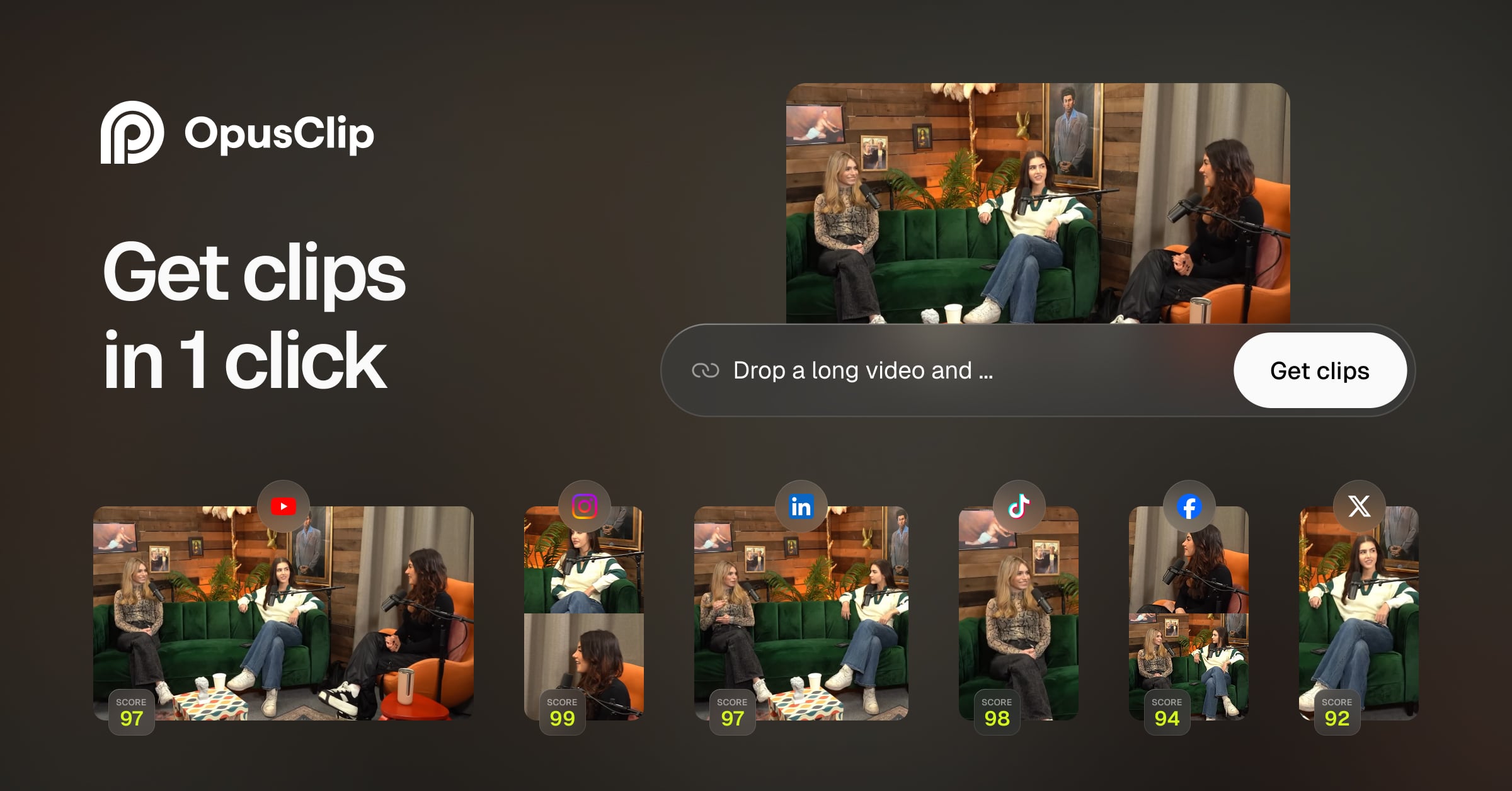
OpusClip takes a long video, picks the moments worth sharing and turns them into short clips. Podcasters, webinar hosts and streamers are the people it was built for.
Key AI features
- ClipAnything: finds scenes from a prompt and rates their virality potential.
- ReframeAnything: resizes clips to 9:16, 1:1 or 16:9 and keeps the subject centered.
- AI captions: added automatically to every clip.
Pros
- A steady supply of shorts comes out of recordings you already have.
- Visual moments get clipped too, not only what is said.
- Finished clips go out to social platforms in one click.
Cons
- The free plan clips by speech only and deletes media after 3 days.
Pricing: free plan; Starter $15 and Pro $29 per month (OpusClip pricing).
Quick comparison
| Tool | Best for | Standout AI feature | Price from |
|---|---|---|---|
| Descript | Podcasts and talking-head video | Underlord co-editor | Free; $16/month |
| Adobe Premiere | Professional editors in Creative Cloud | Generative Media Tool | $22.99/month |
| DaVinci Resolve | Pros without a subscription | IntelliSearch | Free; Studio $295 one-time |
| CapCut | Social creators on mobile | Long video to shorts | Free |
| Runway | Generative edits to existing shots | Aleph 2.0 | $12/month |
| VEED | Marketing teams in the browser | Eye Contact correction | Free |
| Kapwing | Rough cuts by chat | Kai agent | Free; $16/month |
| Filmora | Beginners on desktop | AI Media Analysis | Free; $49.99/year |
| OpusClip | Long videos into shorts | ClipAnything | Free; $15/month |
What didn’t make the list
Topaz Labs upscales and restores footage, but it does not edit. Synthesia, InVideo and Pika generate new video from text or with avatars, so they belong in a different list. Vizard and Submagic cut long videos into shorts much like OpusClip, and we kept one tool for that job. Clipchamp is a beginner editor whose AI features did not meet our bar next to the tools above.
FAQ
What is the best free AI video editor?
Kapwing and OpusClip are the best free starting points, because both include AI tools on their free plans, with limits on exports and storage. CapCut’s free version suits quick social clips on a phone. DaVinci Resolve is free as well, but its AI tools need the Studio license.
Can AI edit a video automatically from start to finish?
Only for short clips. CapCut and OpusClip turn long recordings into finished shorts, while Kapwing’s Kai and Descript’s Underlord build a rough cut from instructions. For a longer video with a story, you still review the result and decide on pacing and structure yourself.
Which AI video editor is best for YouTube Shorts and TikTok?
CapCut is our choice if you shoot and edit on your phone. If the source is a podcast or webinar you already recorded, OpusClip is the better fit, since it picks the moments, reframes them to 9:16 and adds captions before you touch anything.
Is DaVinci Resolve or Premiere better for AI features?
Premiere is ahead in generative AI, since it extends clips and generates video and sound effects from prompts. Resolve Studio is stronger at searching and repairing footage with IntelliSearch, Magic Mask and UltraSharpen, and it costs a one-time $295. Choose by how you work and how you want to pay.
Verdict
If your videos are mostly people talking, go with Descript. Professional editors should pick Premiere if they live in Creative Cloud, or Resolve Studio if they would rather pay once. On a phone, CapCut is our pick for social media, and OpusClip turns long recordings into captioned shorts on its own. When a single shot needs a generative fix, open Runway. Browser teams do well with VEED or Kapwing, and beginners on desktop with Filmora.