What Claude Code is, what it's best for, a first project to build step by step, and how the desktop app and VS Code extension compare.
In chat, Claude writes code and you copy it somewhere. Claude Code skips the copying. You point it at a folder on your computer, describe what you want, and it reads your files, writes new ones, runs them, checks the result and fixes what’s broken. It’s the same Claude, with its hands on the keyboard.
That sounds like a developer tool, and it is one. But it’s also the easiest way for non-developers to build a real website, a small app or a script that saves them an hour a week. This beginner’s Claude Code tutorial shows you how to use Claude Code from zero: what it is, how it fits next to the Claude app, what it’s best at, and a first project you can follow step by step. At the end, we compare the two friendliest ways to run it: the Claude desktop app and the VS Code extension.
Module 10 of The Complete Claude Guide · Features and prices checked on 11 November 2026 · Claude Code version 2.1.322
What is Claude Code?
Anthropic describes it as “an agentic coding tool that reads your codebase, edits files, runs commands, and integrates with your development tools”. In plain English: it’s Claude working inside your project instead of inside a chat window.
The key word is agentic. In Lesson 1 you met the loop: plan a step, act, check the result, adjust. Claude Code runs that loop on your files. Ask it to add a search bar and it will open the right files, make the change, run the app, notice the error it caused and fix it, all before it tells you it’s done. Anthropic sums the loop up as “gather context, take action, and verify results”.
You stay in charge. Claude Code asks before risky actions, shows you every change as a before-and-after comparison, and can make a plan first and wait for your OK.
Where Claude Code fits next to the Claude app
If you already use Claude in your browser or the app, here’s how Claude Code is different:
| Claude chat | Artifacts | Claude Code | |
|---|---|---|---|
| Where the work happens | In the conversation | In a window next to your chat | In a folder on your computer, or a cloud copy of your project |
| What it can do | Answer, write, explain code you paste in | Build one-page tools and documents you can share with a link | Read a whole project, create and edit many files, run commands and tests, use Git |
| Best for | Questions, writing, quick snippets | Calculators, quizzes, small visual tools | Real projects you keep, apps that grow, automating tasks |
| Plan you need | Free and up | Free and up | Pro and up |
Claude Code runs in several places, and the same engine powers all of them:
- The Claude desktop app, in the Code tab. The friendliest start, no terminal needed.
- VS Code, through the official extension. It also installs in Cursor and other VS Code-based editors.
- JetBrains IDEs such as IntelliJ, PyCharm and WebStorm.
- The terminal, the most complete version, with scripting and every command.
- The web at claude.ai/code, where tasks run in the cloud and keep going after you close your laptop.
- Your phone, in the Code tab of the Claude app, to start and check on tasks while you’re away.
Your project settings and instructions are shared between the versions on your computer, so you can switch from the desktop app to VS Code mid-project.
What Claude Code is best for
Claude Code shines when a job touches several files, needs testing, or is too tedious to do by hand. These are the jobs it’s built for, based on Anthropic’s own examples:
-
Build something new from a description.
A personal website, a small web app, a script that renames 300 photos. You describe it, Claude Code builds it, runs it and fixes what breaks.
-
Fix bugs.
Paste the error message or describe what goes wrong. Claude traces the problem through your files, fixes it and checks that the fix works.
-
Understand code you didn’t write.
Ask “how does the login work?” in a project you’ve just joined. Claude maps the codebase and explains it in plain English.
-
Get through the work you keep putting off.
Writing tests, updating dependencies, cleaning up old code, tidying documentation. Good jobs to hand off and review.
-
Handle Git for you.
Claude Code can save versions of your work, write clear commit messages, create branches and open pull requests.
-
Work beyond code.
It works in any folder. People use it to clean up spreadsheets and CSV files, turn data into charts and reports, or organise a folder of notes.
When to stay in chat instead: a quick question, a single snippet you’ll paste somewhere, or a one-page tool you want to share with a link. That’s faster in the Claude app or as an artifact.
What you need before you start
- A paid Claude plan. Claude Code needs Pro, Max, Ultra, Team or Enterprise, or a Claude Console account that pays per use. The free plan doesn’t include Claude Code. Not sure which plan? See Is Claude Free? Claude Pricing and Plans Explained.
- A computer that’s not too old. macOS 13 or later, Windows 10 (version 1809) or later, or a recent Ubuntu or Debian, with at least 4 GB of memory.
- A folder to work in. Start with a new, empty folder or a small project you know well.
Good to know: your usage is shared between Claude and Claude Code, so a long coding session leaves less for chat. On every paid plan, Claude Code starts with Opus 5.5 as its model. You can switch with the /model command.
How to install Claude Code
Pick one of the three. If you’ve never coded, start with the desktop app.
Option 1: the Claude desktop app (easiest). Download the Claude app for Mac or Windows (a Linux version is in beta) from the links in Anthropic’s desktop quickstart, sign in and click the Code tab at the top of the sidebar. As the quickstart puts it, “the desktop app includes Claude Code, so you don’t need to install Node.js or the CLI”.
Option 2: the VS Code extension. In VS Code, press Ctrl+Shift+X (Cmd+Shift+X on a Mac), search for “Claude Code” and install Claude Code for VS Code by Anthropic. You need VS Code 1.94 or later. Click the Spark icon to open Claude and sign in.
Option 3: the terminal. On a Mac or Linux, open Terminal and run the official installer:
curl -fsSL https://claude.ai/install.sh | bash
On Windows, open PowerShell and run:
irm https://claude.ai/install.ps1 | iex
Then go to your project folder, type claude and log in. This version updates itself in the background. The setup guide also covers Homebrew, WinGet and Linux package managers.
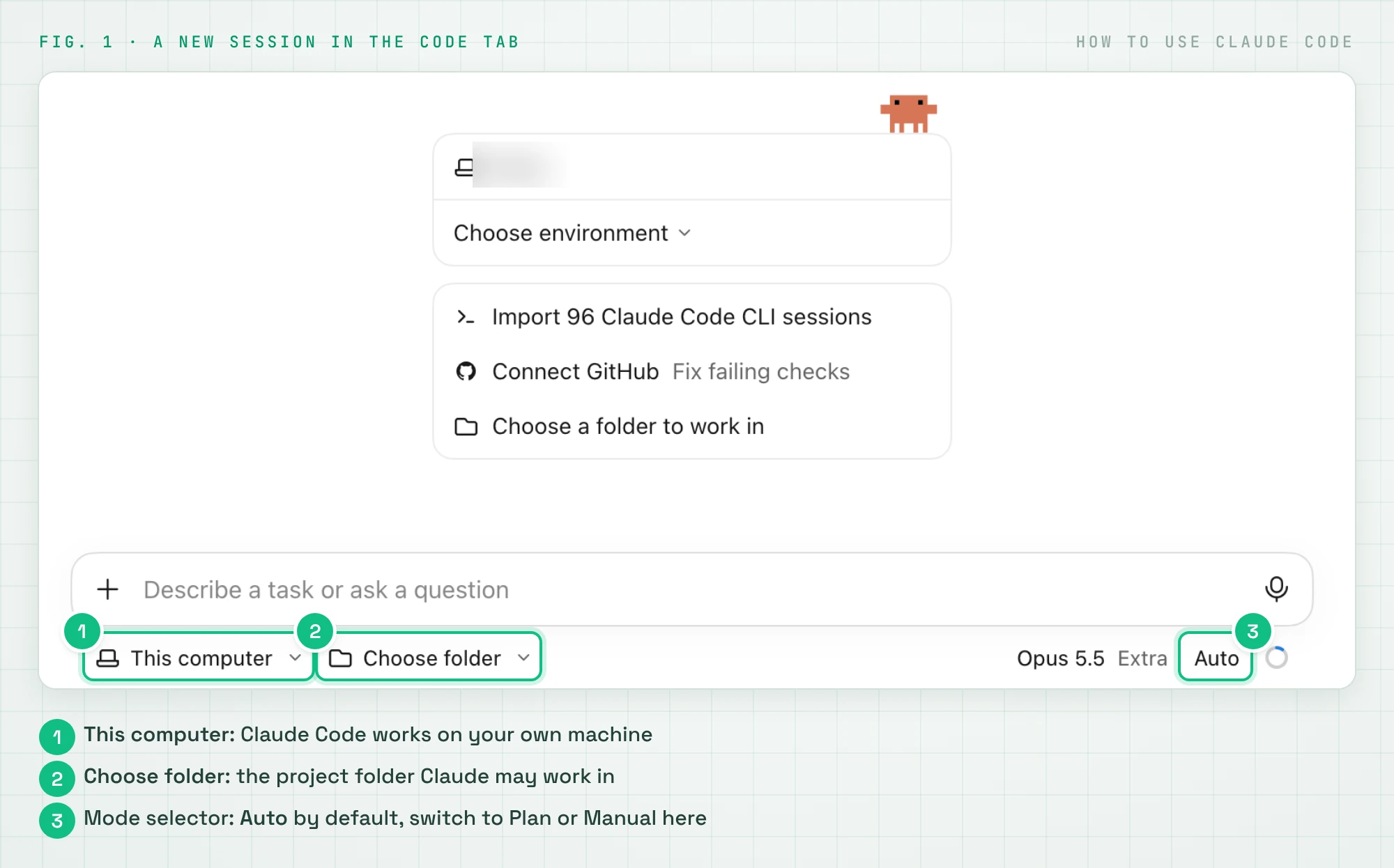
How to use Claude Code: your first project, step by step
The best way to learn how to use Claude Code is to build something small. In Lesson 1, you built a reading tracker as an artifact. Now you’ll build a real one: files on your computer that you own, that save your books, and that you can keep improving. It uses plain HTML, CSS and JavaScript, so there’s nothing extra to install. Follow along in the desktop app or VS Code; the steps are the same.
-
Make a folder.
Create an empty folder called
reading-tracker, for example in Documents. -
Open it in Claude Code.
In the desktop app’s Code tab, check that the environment selector under the prompt box says This computer, then click Choose folder and pick your folder. In VS Code, use File, then Open Folder, click the Spark icon in the Activity Bar on the left and start a new session. Claude works inside the folder you choose.
-
Switch to Plan mode.
Click the mode selector under the prompt box and choose Plan (in the terminal, press Shift+Tab until you see “plan mode on”). In Plan mode, Claude reads and thinks but doesn’t change any files.
-
Describe what you want.
Be specific, and say you’re a beginner. Copy this prompt:
I'm a beginner. Build a reading tracker that runs in my browser,
using plain HTML, CSS and JavaScript, with nothing to install.
I want to add a book with title, author and a 1-5 star rating,
mark it as finished, and filter by finished or to-read.
Save the books in the browser so they're still there tomorrow.
Before you build anything, show me your plan and explain
which files you'll create and why.
-
Read the plan and push back.
This is where you steer. Ask for changes before any code exists: “Keep it to one page”, “Add a delete button”, “Use a dark theme”. When the plan looks right, click Accept. Revise… lets you ask for changes first, and you can select any text in the plan to leave Claude a comment.
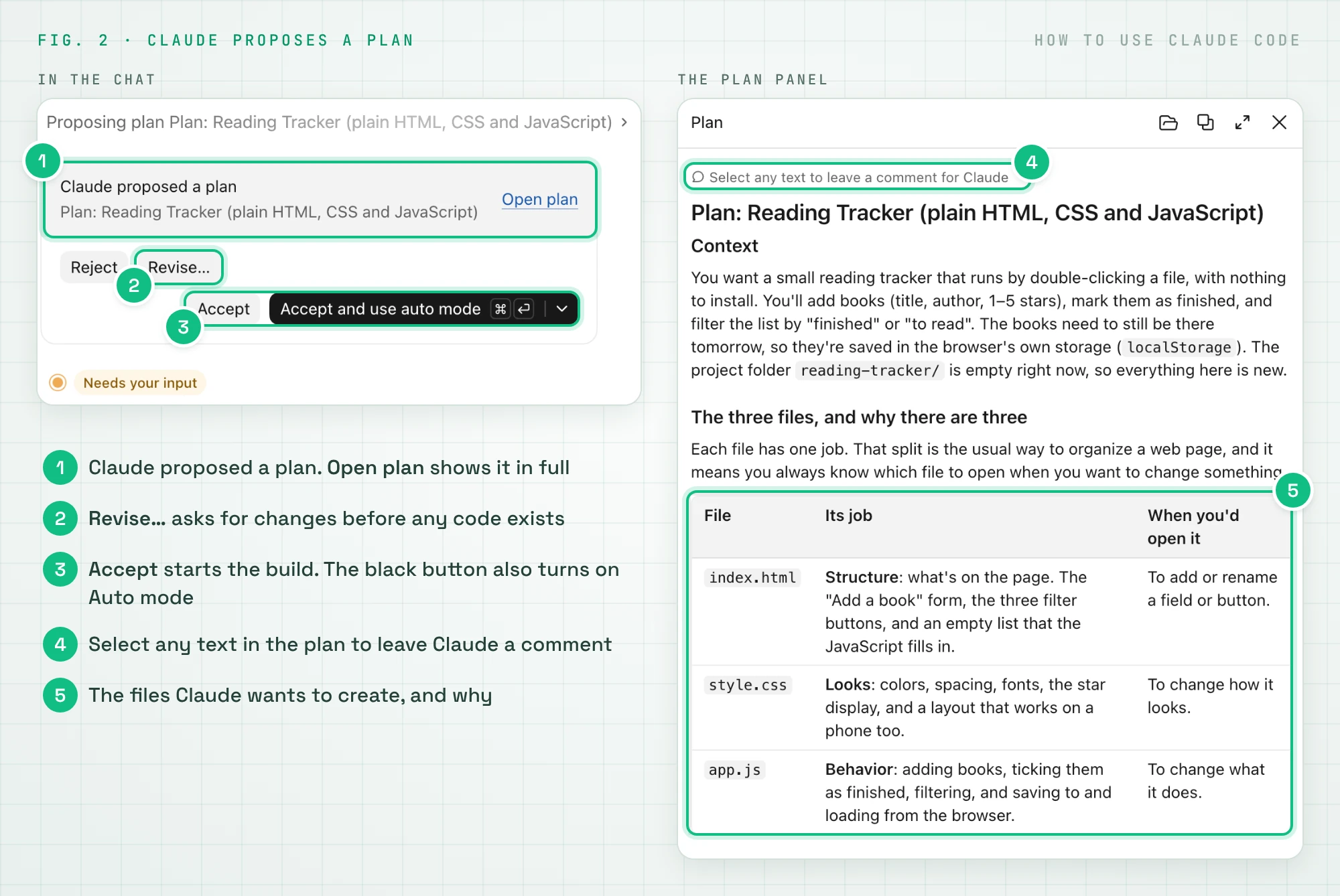
Claude’s plan for the reading tracker. Nothing gets built until you accept it. -
Watch it build and review the changes.
Claude creates the files one by one. Depending on your permission mode, it either asks before each change or makes them and shows you a summary such as
+120 -0. Click it to see every line it added. In VS Code, you can accept or reject each change.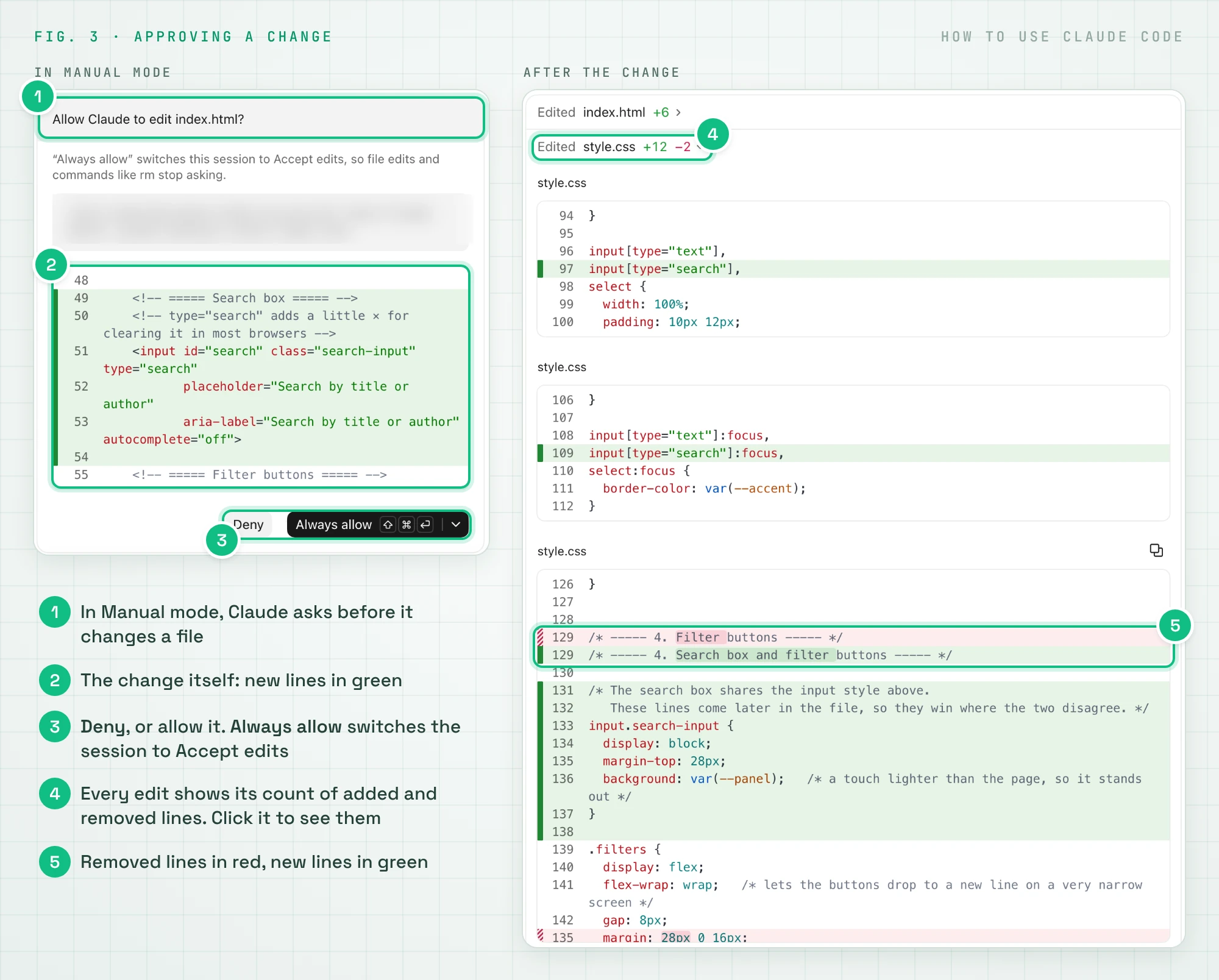
In Manual mode, Claude asks before each change. Afterwards, every edit shows what it added and removed. -
See it running.
Claude often opens a preview and tests the app on its own, as it did in our test. If it doesn’t, ask: “Start a local preview so I can try it.” In the desktop app, your tracker opens in the built-in Browser pane. In VS Code, Claude tells you how to open it in your browser. Add two or three books and refresh the page to check they’re saved.
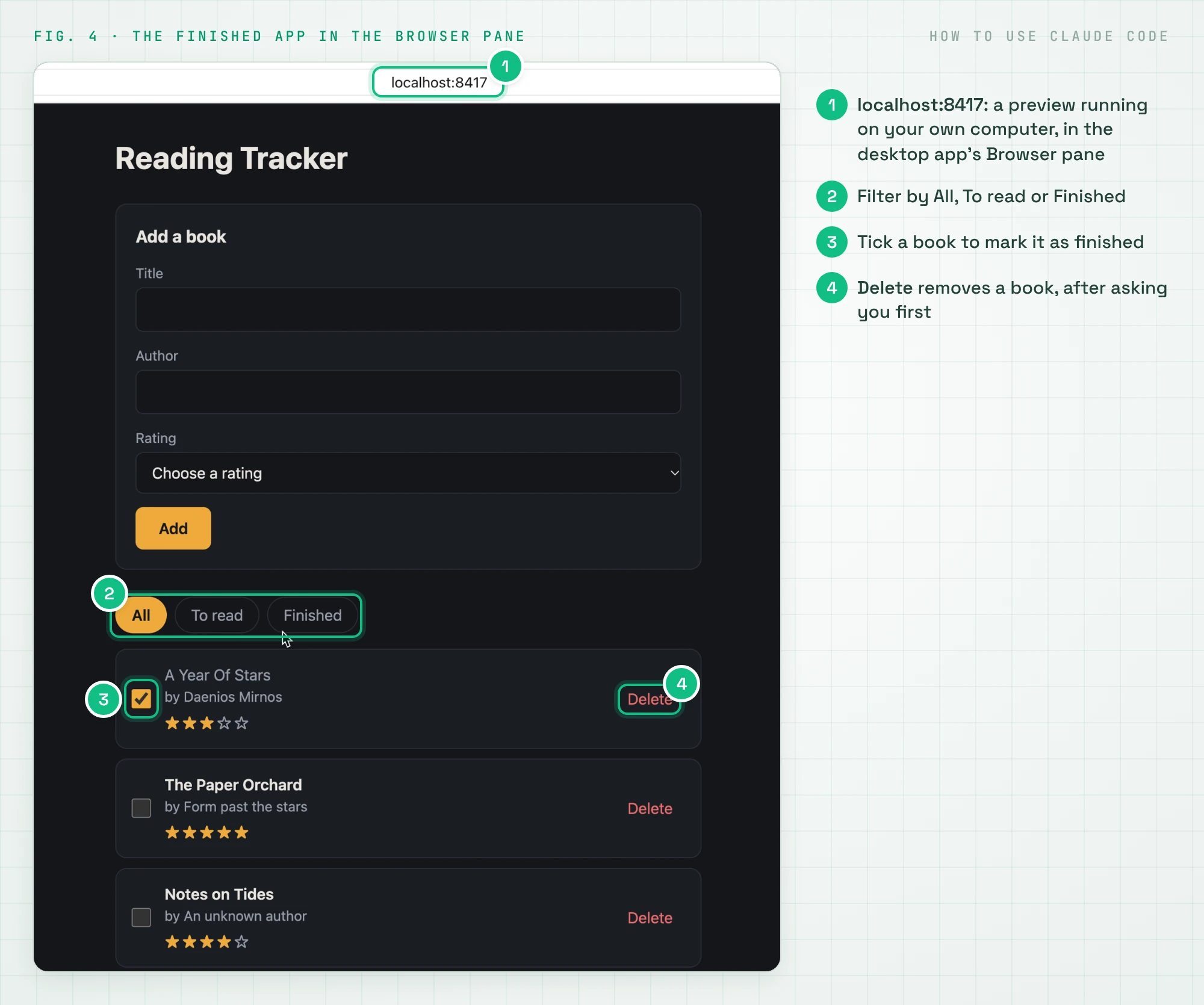
The finished tracker running in the Browser pane, with one book marked as finished. -
Improve it in plain English.
Add one feature per message: “Add a search bar.” “Show how many books I finished this year.” If something breaks, describe what you see: “When I refresh, my star ratings disappear.” Claude will find the cause and fix it.
-
Save your progress.
Ask: “Set up Git for this folder and save what we have with a clear message.” Git keeps a version history, so you can always go back. If Git isn’t installed, Claude will tell you how to get it.
-
Teach Claude your project.
Type
/init. Claude writes a file calledCLAUDE.mdthat describes your project, and it reads that file at the start of every session. Next time you open the folder, it already knows what you’re building.
That’s the whole workflow: plan, build, check, improve, save. It works the same way for a portfolio site, a budget tool or a script that tidies your downloads folder. Want more ideas? Try one of these in a new folder:
Look at the CSV files in this folder, combine them into one,
remove duplicate rows and tell me what you changed.
Create a simple personal website with an About page, a Projects
page and a contact link. Keep the design clean and mobile-friendly.
This Python script crashes with the error below. Find out why,
fix it, and explain the fix in two sentences.
[paste the error]
Claude Code in the desktop app vs in VS Code
Both use the same engine, the same models and the same plan. The difference is the workspace around them. Here’s how they compare, based on Anthropic’s documentation for the desktop app and the VS Code extension:
| Desktop app (Code tab) | VS Code extension | |
|---|---|---|
| Best for | Beginners and non-developers, visual review, running several tasks at once | People who already work in VS Code or Cursor and want Claude next to their code |
| Setup | Install the Claude app and open the Code tab. Nothing else to install | Install “Claude Code for VS Code” from the Extensions view. Needs VS Code 1.94 or later |
| Seeing your code | Files open in a pane when you click them; you mostly review changes | Your full editor: browse, search and edit files yourself while Claude works |
| Reviewing changes | A diff view that opens from the +12 -1 indicator, file by file, with comments on specific lines |
Side-by-side diffs in the editor, with Accept and Reject buttons for each change |
| Planning | Plan mode: the plan opens in a side panel, and you can select any text to comment on it | Plan mode: the plan opens as a document you can comment on line by line |
| Permission modes | Auto, Manual, Accept edits, Plan | Auto, Manual, Edit automatically, Plan |
| Trying your app | Built-in Browser pane where Claude can view and test the running app | Your usual browser |
| Bigger workflows | Parallel sessions, cloud sessions that keep running, scheduled tasks | Several conversations in tabs or windows, and history shared with the terminal version |
| Undo | Review before accepting, and Git | Checkpoints: “Rewind code to here” on any message, plus Git |
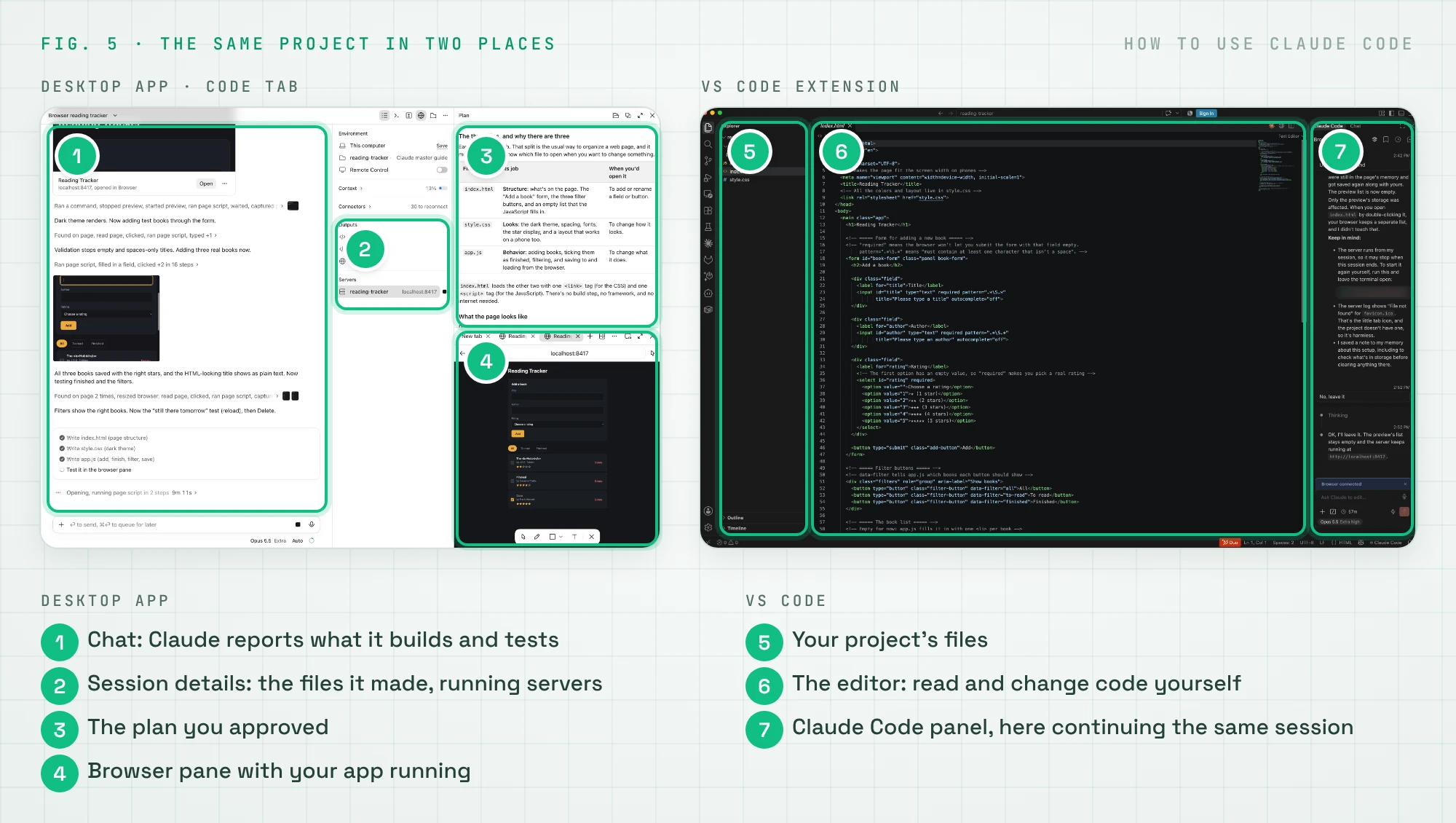
Our pick: if you’ve never written code, start in the desktop app. It keeps the focus on what Claude does and lets you see the result straight away. If you already use VS Code, the extension is the natural home, because you can read and tweak the code yourself between prompts. And when you want every feature, including scripting and the full list of commands, the terminal version is the most complete. You can mix all three on the same project.
Beginner tips for Claude Code
- Plan first. For anything bigger than a small fix, start in Plan mode. Fixing a plan is cheaper than fixing code.
- Start in Manual mode while you learn. New sessions usually start in Auto, where a second model reviews Claude’s actions instead of asking you. Switching to Manual lets you see every change before it happens. Once you trust the flow, switch back.
- One feature at a time. Small steps are easier to check and easier to undo.
- Describe what you see. “The button does nothing” or a screenshot of the problem is all Claude needs. The desktop app accepts images and PDFs.
- Save versions often. Ask Claude to commit after every working step. Checkpoints help too (press Esc twice in the terminal, or use “Rewind code to here” in VS Code), but they don’t replace Git.
- Clear between tasks. Type
/clearwhen you switch to something unrelated. A fresh start keeps Claude focused and saves usage. Type/usageto see how much you have left. - Keep secrets out. Don’t paste passwords or API keys into a prompt, and keep sensitive files out of the folder you share.
- Ask why. “Explain what you just changed” turns every session into a coding lesson.
What does Claude Code cost?
Claude Code is included in every paid plan, and your usage counts against the same limits as chat:
| Plan | Price | Good for |
|---|---|---|
| Pro | $20/month, or $17/month billed yearly | Trying Claude Code and small projects |
| Max | $100/month | Using Claude Code most days (5x Pro’s usage) |
| Ultra | $200/month | Coding with Claude for hours (10x Pro every week, no 5-hour limit once verified) |
| Team | From $25 per seat per month ($20 billed yearly) | Teams; Premium seats ($125, or $100 yearly) for heavy users |
| Console (API) | Pay per use | Developers who prefer paying for exactly what they use |
Source: Claude pricing, checked on 11 November 2026, prices before tax. For a full breakdown, including which plan fits which role, read our Claude pricing guide.
FAQ
Is Claude Code free?
No. You need a Pro plan ($20 a month) or higher, or a Claude Console account that pays per use. The free Claude plan doesn’t include Claude Code. You’ll find videos about using Claude Code for free: they connect it to other, open models through tools like Ollama, which means you’re no longer using Claude’s own models.
Do I need to know how to code to use Claude Code?
No. Anthropic’s own guide for terminal beginners says: “You don’t need to know how to code. Describe what you want in plain English.” It helps to read Claude’s plans, test what it builds and ask it to explain its changes. You’ll pick up a lot along the way.
What’s the difference between Claude and Claude Code?
Claude is the assistant you chat with. Claude Code is Claude working directly in your project: it reads and edits files, runs commands and checks its own work. Both use the same models and the same plan.
Can I use Claude Code in VS Code or Cursor?
Yes. Install the official “Claude Code for VS Code” extension from the Extensions view. The same extension works in Cursor and other editors built on VS Code.
Is it safe to let Claude Code run commands?
Its permission modes control what it may do without asking. According to Anthropic’s security page, in Manual mode Claude Code can only change files inside the folder you opened, and it asks before editing files or running commands that can change your system. Start with a test folder, keep your work in Git, and read what it plans to do. Companies set their own rules too: Goldman Sachs, for example, limited Claude Code to its engineers.
How long does it take to learn how to use Claude Code?
You can finish the reading tracker above in under an hour. Getting comfortable with plans, permissions and Git takes a week or two of regular use.
What’s next
Next lesson: Claude Code Best Practices. Power-user habits, CLAUDE.md tricks and a cheat sheet of the commands you’ll use every day.
New to Claude? Start with How to Use Claude. This lesson is part of The Complete Claude Guide, a free course from first chat to building your own agents.
Official sources: Claude Code overview · Set up Claude Code · Desktop quickstart · Claude Code in VS Code · Platforms and integrations · Permission modes · CLAUDE.md and memory · Use Claude Code with your plan
