How to use Claude AI in five levels, from fixing your first email to building a simple app, with prompts you can copy and try today.
You’ve heard about Claude AI. Maybe a colleague swears by it. Maybe you tried it once, asked a question, got a decent answer and wondered what the fuss was about. Most people miss one thing: Claude isn’t a search box. It works more like a very capable new colleague, one who can write, research, analyse files and even build small apps for you. Like any new colleague, it does its best work when you tell it what you actually need.
This guide shows you how to use Claude in five levels, from polishing an email to building your own interactive tools. Every level has prompts you can copy and try right away. You don’t need any technical background. Open Claude in another tab and let’s go.
Lesson 1 of The Complete Claude Guide · Plans, prices and features checked on 27 October 2026 · Tested with Claude Opus 5.5
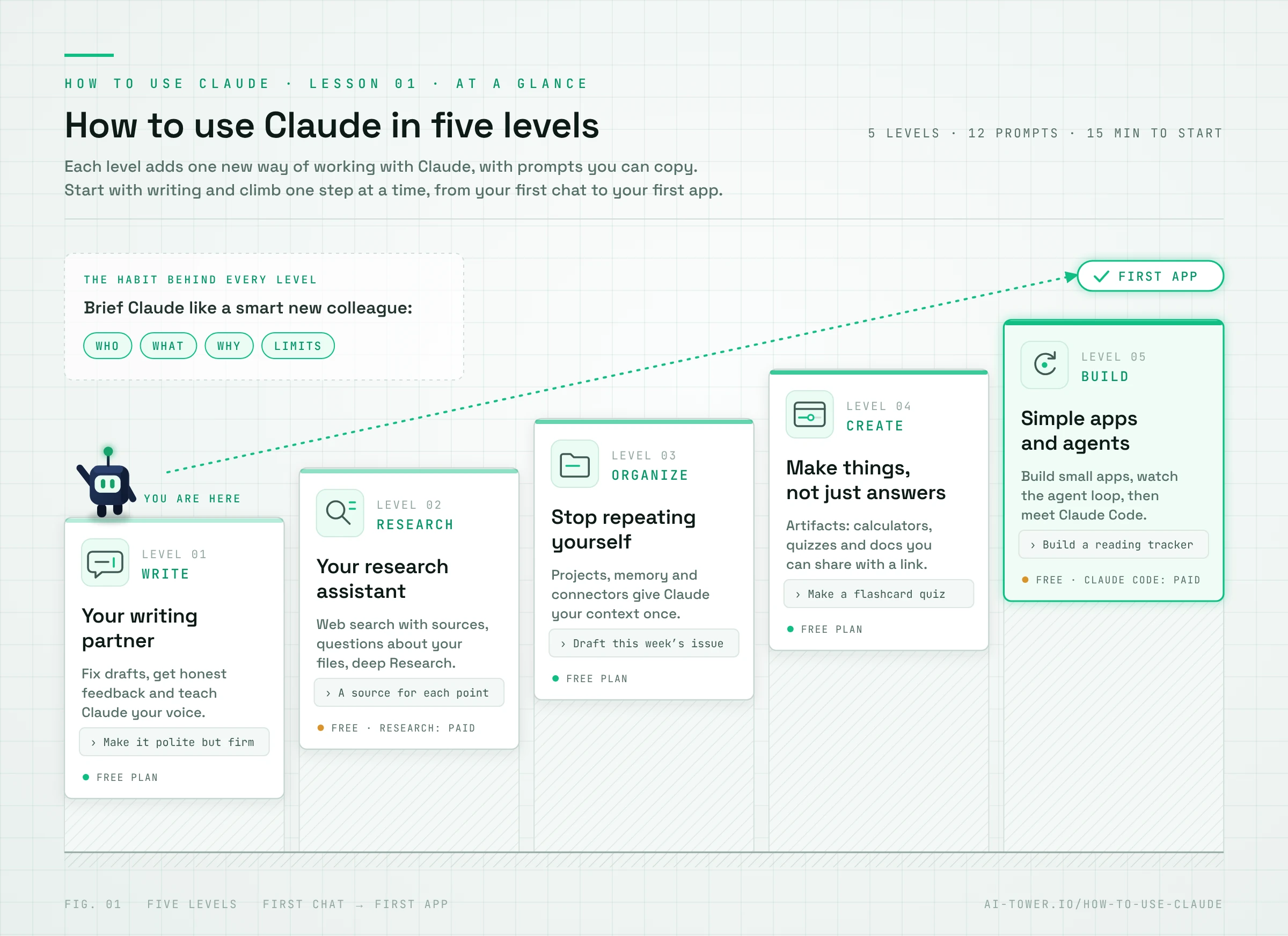
Before you start
You can use Claude AI in three places, all with the same account: in your browser at claude.ai, in the desktop app for Mac and Windows, and in the iPhone and Android apps. Your chats sync everywhere, so you can start an idea on your phone and finish it at your desk.
Which plan do you need?
Start free. The free plan covers almost everything in this guide. Only two features need a paid plan: the deeper Research mode and Claude Code. Here’s how the individual plans compare:
| Plan | Price | Models | Research | Claude Code |
|---|---|---|---|---|
| Free | $0 | Sonnet, Haiku | No | No |
| Pro | $20/month, or $17/month billed yearly | Opus, Sonnet, Haiku (Fable with usage credits) | Yes | Yes |
| Max | From $100/month | Opus, Sonnet, Haiku, Fable | Yes | Yes |
Source: Claude pricing, checked on 27 October 2026. Prices change, so check the page before you buy.
Which model should you pick?
Claude comes in a few sizes, and you’ll see a picker near the message box. Think of it like choosing a colleague:
- Haiku is the quick helper for simple jobs.
- Sonnet is the fast all-rounder.
- Opus is the deep thinker for harder work (Pro and up).
- Fable is Anthropic’s most capable widely available model. It’s included on Max and runs on usage credits on Pro.
Honestly? Start with the default and only switch when a task needs more.
One quick setting
Click the + button in the message box. That’s where you’ll find web search, Research, connectors and more. Also check that Code execution and file creation is switched on under Settings, then Capabilities. You’ll need it for Level 4.
The one habit that changes everything
If you learn one thing about how to use Claude, make it this: brief it like a smart new colleague on their first day. It knows a lot about the world, but nothing about you, your audience or your goals. Fill that gap and the results jump. Compare these two requests:
- Vague: “Write a LinkedIn post about our new app.”
- Clear: “Write a LinkedIn post announcing our budgeting app for freelancers. Audience: freelance designers and writers. Tone: friendly, no hype, a little funny. Under 150 words. End with a question that invites comments.”
The first gets you something generic. The second gets you something you could actually post. Before you hit send, check four things:
- Who is it for?
- What do you want, and what does “good” look like?
- Why do you need it? The purpose shapes the answer.
- Limits: length, tone, format and things to avoid.
Two more moves that beginners rarely use:
- Let Claude interview you. Add “Before you start, ask me any questions you need answered.” It will.
- Treat the first answer as a draft. Reply with “shorter”, “warmer” or “give me three versions”. It’s a conversation, not a vending machine.
Level 1: Your writing partner
Writing is the easiest place to start, because you can judge the result instantly. Here are three ways to use Claude, each a little smarter than the last.
1. Fix a messy draft. Paste something rough and say what it needs.
Here's a rough email to my landlord about a broken heater.
Make it polite but firm, under 120 words, and ask for a repair date.
[paste your draft]
2. Get feedback, not a rewrite. This keeps your voice and makes you a better writer.
Don't rewrite this. Point out the three weakest spots
and tell me why they don't work.
[paste your text]
3. Teach it your voice. Paste two or three things you’ve written before, then ask for something new.
Here are three of my past newsletters. Study the tone and rhythm.
Then draft this week's issue about [topic] in the same style.
Pro tip: say what to avoid. “No buzzwords, no exclamation marks, no ‘in today’s fast-paced world'” works wonders.
Go deeper: Prompt Engineering for Claude and How to Make Claude Stop Sounding Like AI (coming soon in this series).
Level 2: Your research assistant
Claude can search the web, read your documents and pull it all together into something you can use. Pick the tool that matches the size of the question.
Quick question? Use web search. Claude looks things up and shows you its sources. Web search works on every plan, including Free. Switch it on from the + menu.
What are the main changes to remote-work tax rules in [your country]
this year? Five bullet points, with a source for each.
Got a document? Upload it. Drop in a PDF, report or spreadsheet and ask questions about it.
Summarize this report in five bullets for a busy manager.
Then list three questions I should ask the author.
Big question? Use Research. On paid plans, Research plans its own search strategy, runs many searches, reads what it finds and writes a report with citations. It takes minutes instead of seconds, and it’s worth the wait.
Compare the three most popular project management tools for a
10-person design agency. Cover price, learning curve and client
sharing. Put it in a table and end with a recommendation.
The golden rule: trust, but verify. Claude is careful, but it can still get things wrong. Click the sources for anything important. Even better, ask: “What are you least sure about in this answer?”
Go deeper: Web Search vs Research vs Extended Thinking (coming soon). Comparing research tools? See our list of the best AI tools for research.
Level 3: Stop repeating yourself
Once you use Claude regularly, you’ll notice you keep explaining the same things. Three features fix that.
Projects: a home base for each piece of work. A project is a workspace with its own files and instructions. Every chat inside it starts with that context already loaded. Make one for your newsletter, your thesis or a client. The free plan includes up to five projects.
Project instructions (example):
I write a weekly newsletter for small cafe owners. Readers are busy
and not techy. Keep everything practical, warm and under 600 words.
Use British spelling.
Then upload your brand guide and a few past issues. From now on, “draft this week’s issue about holiday staffing” just works.
Memory: Claude gets to know you. With memory on, Claude carries useful details from past chats into new ones, like your role or preferred style. You can see, edit or switch it off in Settings. Each project keeps its own separate memory, so client work stays apart.
Connectors: plug in your apps. Connect tools like Google Drive, Gmail, Calendar, Notion or Slack, and Claude can work with your real stuff. Try: “Look at my calendar this week and tell me where I can fit two hours of focus time.”
Go deeper: Claude Projects and Claude Connectors: The Complete Guide (coming soon).
Level 4: Make things, not just answers
This is where people usually say “wait, it can do that?” Claude doesn’t only reply in text. It can build artifacts: documents, slide decks and small interactive tools that open right next to your chat.
You don’t need to know any code. You describe what you want, Claude writes the code, and the finished tool appears, ready to use. Try one of these:
Make an interactive mortgage calculator. Sliders for home price,
deposit, interest rate and loan term. Show the monthly payment and
a simple chart of interest vs. principal over time.
Turn these 20 Spanish words into a flashcard quiz.
Flip cards on click, shuffle the order, and keep score.
[paste your word list]
Create a one-page project brief for launching a podcast:
goals, audience, episode plan, budget and timeline.
Now tweak it like you’re talking to a designer. “Make the buttons bigger.” “Add a dark mode.” “Use our brand colours: navy and coral.” Each change takes seconds.
The best part? Every artifact is saved in the Artifacts section of your sidebar, and you can share it with a link. Your mortgage calculator can go straight to your partner’s phone. Slide decks and documents can be downloaded too, for example as PowerPoint or PDF files.
Go deeper: Claude Artifacts & Interactive Visuals (coming soon).
Level 5: Build simple apps and meet the agents
Artifacts can grow into real little apps. Here’s a great first project:
Build a reading tracker. I can add a book with title, author and a
1-5 star rating, mark it as finished, and filter by finished or
to-read. Clean, modern design. Keep it simple for now.
Then add one feature per message: “Add a search bar.” “Add a yearly reading goal with a progress bar.” You can even build apps with Claude inside them:
Build a "tone fixer" app. I paste a message, pick a tone (friendly,
formal or direct), and Claude rewrites it. Add a copy button.
Three rules for building with Claude:
-
Start small, then add.
One feature at a time beats a wish list of twenty.
-
Describe what you see.
“When I click Save, nothing happens” is all Claude needs to start fixing.
-
Ask for a plan first.
On anything bigger, start with “Before you build, outline how you’d structure this.”
The loop: how Claude works on bigger jobs
On a task with several steps, Claude works in a loop. It plans a step, takes an action (searching, writing code, running it), checks the result, then decides what to do next. It keeps going round until the job is done or it needs your input.
That loop is what makes Claude an agent rather than just a chatbot. A chatbot answers once. An agent keeps working toward a goal. It’s also why you can hand Claude a longer task, step away and come back to finished work. Since September 2026, Anthropic has been merging its Cowork mode into the main Claude app, starting with Pro and Max. That means Claude can also take on longer tasks and run work on a schedule, every Monday morning for example, without being asked again.
Loops vs. subagents
Some jobs are too wide for one worker. That’s where subagents come in. Claude acts as a team lead: it splits the job into pieces and hands each one to a helper agent. The helpers work at the same time, each with a fresh, focused view. When they report back, Claude combines the results.
Think of a kitchen. A loop is one chef tasting and adjusting the soup until it’s perfect. Subagents are a head chef with line cooks, each making a different dish at once.
| Loop | Subagents | |
|---|---|---|
| How it works | One agent repeats plan, act, check | A lead agent splits work among helpers running in parallel |
| Best for | Step-by-step work where each step depends on the last | Wide tasks with many independent parts |
| Example | Building and debugging your reading tracker | Researching ten competitors at once |
You’ve already met subagents if you’ve used Research. Anthropic has explained that it uses a lead agent that sends out several subagents to explore different angles of your question in parallel.
When you outgrow artifacts: Claude Code
Want a full website, an app with a database or changes to an existing codebase? That’s a job for Claude Code, Claude’s coding agent. It reads your project, edits files, runs commands and tests its own work. It’s included with Pro and Max and runs in the desktop app, the browser, code editors and the terminal. If you’ve never coded, the desktop app is the friendliest way in.
Go deeper: How Claude Works as an Agent and Claude Code for Beginners (coming soon). Curious about agents beyond Claude? See the best open-source AI agents.
When not to use Claude
Claude is useful for a lot, but not for everything. Reach for something else, or at least slow down, when:
- The decision is medical, legal or financial. Use Claude to prepare your questions, then talk to a professional.
- You need the latest news and search is off. Without web search, Claude only knows what it learned in training.
- The numbers have to be exact. For tax returns or invoices, use a spreadsheet, or ask Claude to build one with the formulas visible so you can check them.
- Your company’s AI policy says no. Check before you paste client or confidential data.
- The point is to learn it yourself. Ask Claude to explain or quiz you instead of doing the work for you.
Beginner mistakes (and quick fixes)
| Mistake | Quick fix |
|---|---|
| One endless chat for everything | Start a new chat for each new topic. Long, mixed chats get muddled. |
| Accepting the first answer | Push back: “Too formal.” “Give me two other angles.” |
| Saying “it’s not great” | Say exactly what’s wrong: “The intro is too long and the tone is stiff.” |
| Asking about recent events with search off | Turn on web search for anything that may have changed lately. |
| Pasting sensitive data without thinking | Check your workplace’s AI policy first, and leave out what Claude doesn’t need. |
How to use Claude today: a 15-minute starter plan
Don’t bookmark this and forget it. Do this today:
-
Minutes 0 to 2: Sign in.
Open claude.ai or the app and create your free account.
-
Minutes 2 to 5: Fix a real email.
Paste an email you need to send and ask Claude to improve it.
-
Minutes 5 to 8: Ask a research question.
Turn on web search, ask something you’re curious about and click at least one source.
-
Minutes 8 to 10: Create a project.
Pick something you work on every week and give it a short set of instructions.
-
Minutes 10 to 15: Build something.
Make the mortgage calculator or the flashcard quiz, then change one thing about it.
The best way to learn how to use Claude is the way you’d get to know a new colleague: give it a real task. Start small and useful. Notice what works. Then hand it something a little bigger tomorrow. Within a week, you’ll wonder how you managed without it.
FAQ
Is Claude free?
Yes. You can use Claude for free: the free plan includes chat, web search, memory, connectors and up to five projects, within usage limits. Pro costs $20 a month and adds Opus, Research and Claude Code.
Is Claude hard to learn?
No. You talk to Claude in plain language, so you can get useful results in your first few minutes. What takes a little practice is briefing it well: say who it’s for, what you want, why you need it and any limits. The 15-minute starter plan above covers the basics.
How long does it take to learn how to use Claude?
About 15 minutes to get your first useful results, and a week or two of daily use to make it a habit. To go further, work through Part 1 of The Complete Claude Guide.
What is Claude best for?
Most people start with writing, research and long documents, and Claude is also strong at analysis and coding. It can build small interactive tools too, like the mortgage calculator in Level 4. On Pro and Max, it can also work through longer tasks on its own, as an agent.
Which Claude model should I use?
Start with the default. Switch to Opus, or Fable on Max, when a task needs deeper reasoning, and use Haiku when you want quick answers to simple questions.
Does Claude remember my previous chats?
With memory switched on, Claude carries useful details from earlier chats into new ones. You can view, edit or turn off what it remembers in Settings.
What’s next
Next lesson: Which Claude Should I Use? The Claude app, Claude Code and Claude inside the tools you already use, explained with a simple decision tree.
This lesson is part of The Complete Claude Guide, a free course from first chat to building your own agents.
Official sources: Claude plans and pricing · What are artifacts? · Using Research · Claude Cowork and chat are now one Claude
